Getting Started
Learn about getting started with InstaWebhooks to send new Instagram posts any Discord channel from scratch.
Installing InstaWebhooks
With Python installed, install InstaWebhooks with pip:
$ pip install instawebhooks
Check that InstaWebhooks was installed correctly by seeing if it reports its version:
$ instawebhooks --version
Make sure that are on the latest version of InstaWebhooks.
For more ways to install InstaWebhooks, see the installation guide.
Setting up Discord webhooks
To get your Discord webhook URL, you need the Manage Webhooks permission in the channel you want to send new Instagram posts to.
You can learn more about webhooks through the article, Intro to Webhooks.
Creating your webhook
If your already have a webhook, you can skip this step.
Open Server Settings, then Integrations
Click the “Create Webhook” button
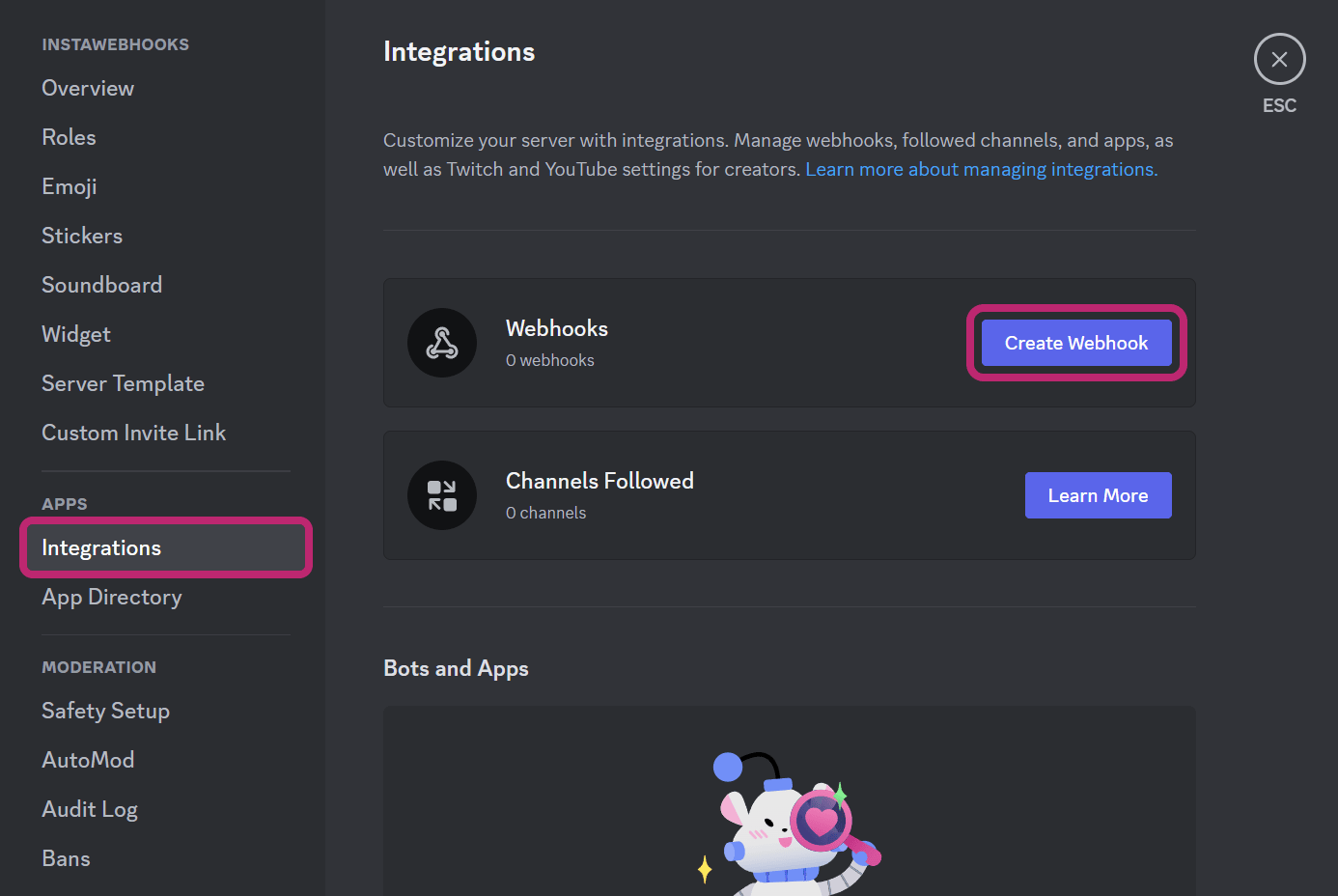
Now you can set the name, channel, and avatar for the webhook.
Getting the webhook URL
When you have your webhook made, click the “Copy Webhook URL” button to copy the URL to your clipboard.
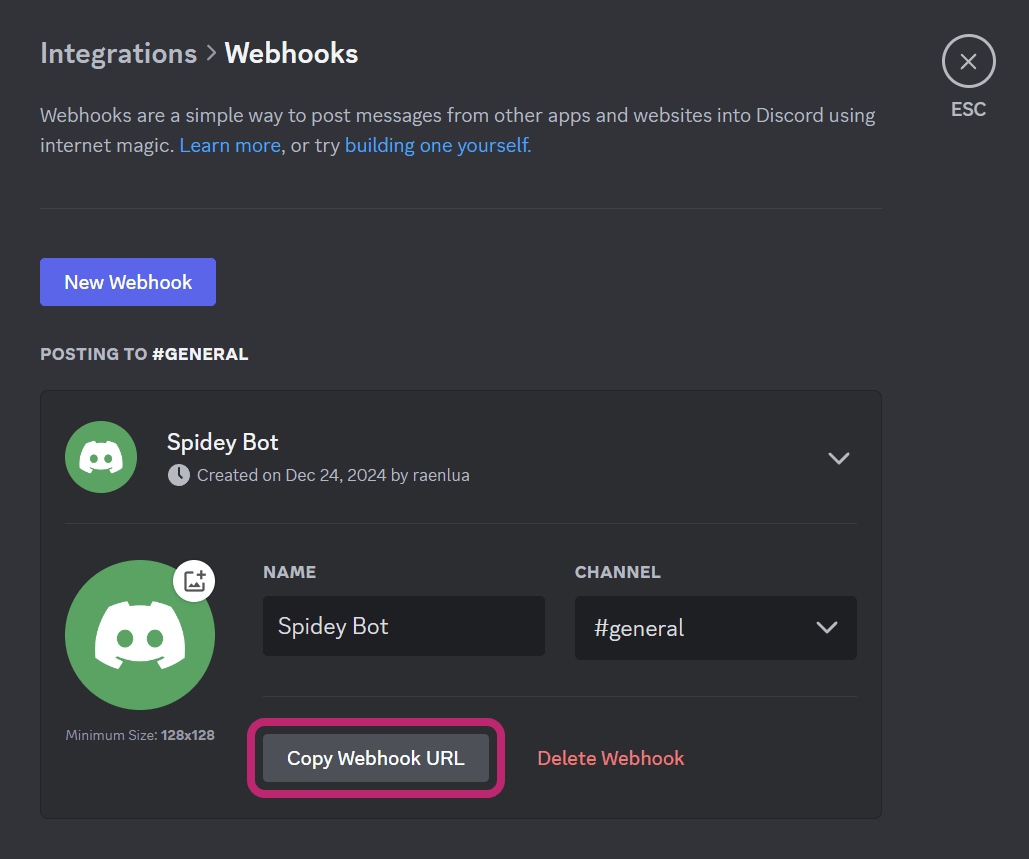
The copied URL should look similar this:
https://discordapp.com/api/webhooks/0123456789/abcdefghijklmnopqrstuvwxyz
Setting up InstaWebhooks
Now with the webhook URL and a Instagram account in mind, you can set up InstaWebhooks to send new Instagram posts to your Discord channel.
Replace <INSTAGRAM_USERNAME> with the username of the Instagram account you want to monitor and <DISCORD_WEBHOOK_URL> with the Discord webhook URL you copied earlier.
$ instawebhooks <INSTAGRAM_USERNAME> <DISCORD_WEBHOOK_URL>
It should look something like this:
$ instawebhooks raenlua https://discord.com/api/webhooks/0123456789/abcdefghijklmnopqrstuvwxyz
Now, whenever the Instagram account @raenlua posts a new photo, it will be sent to the Discord webhook.
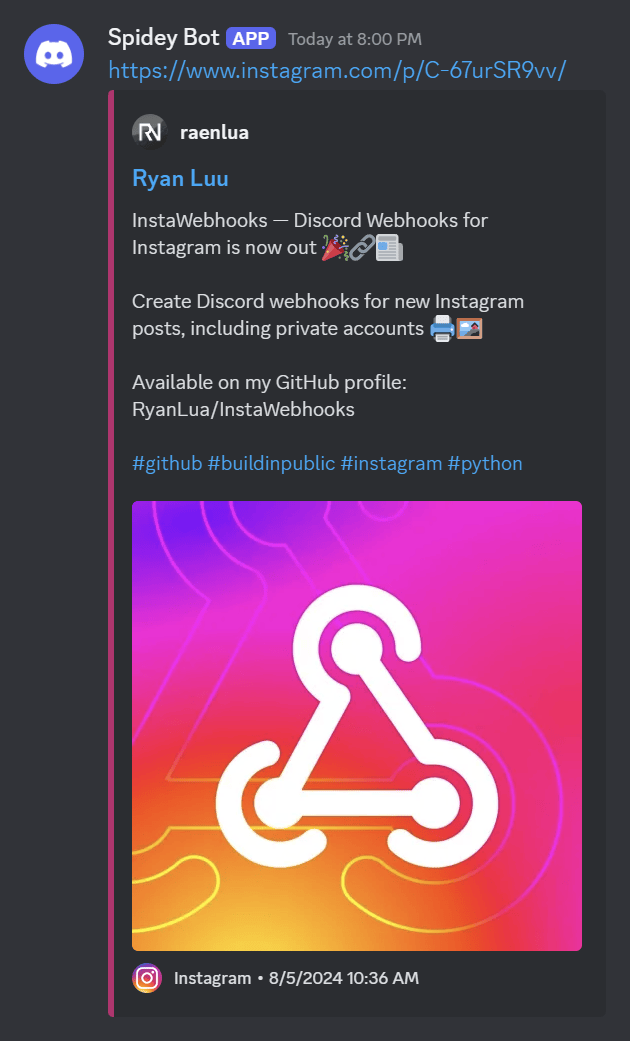
For more information about using InstaWebhooks, see the usage guide.